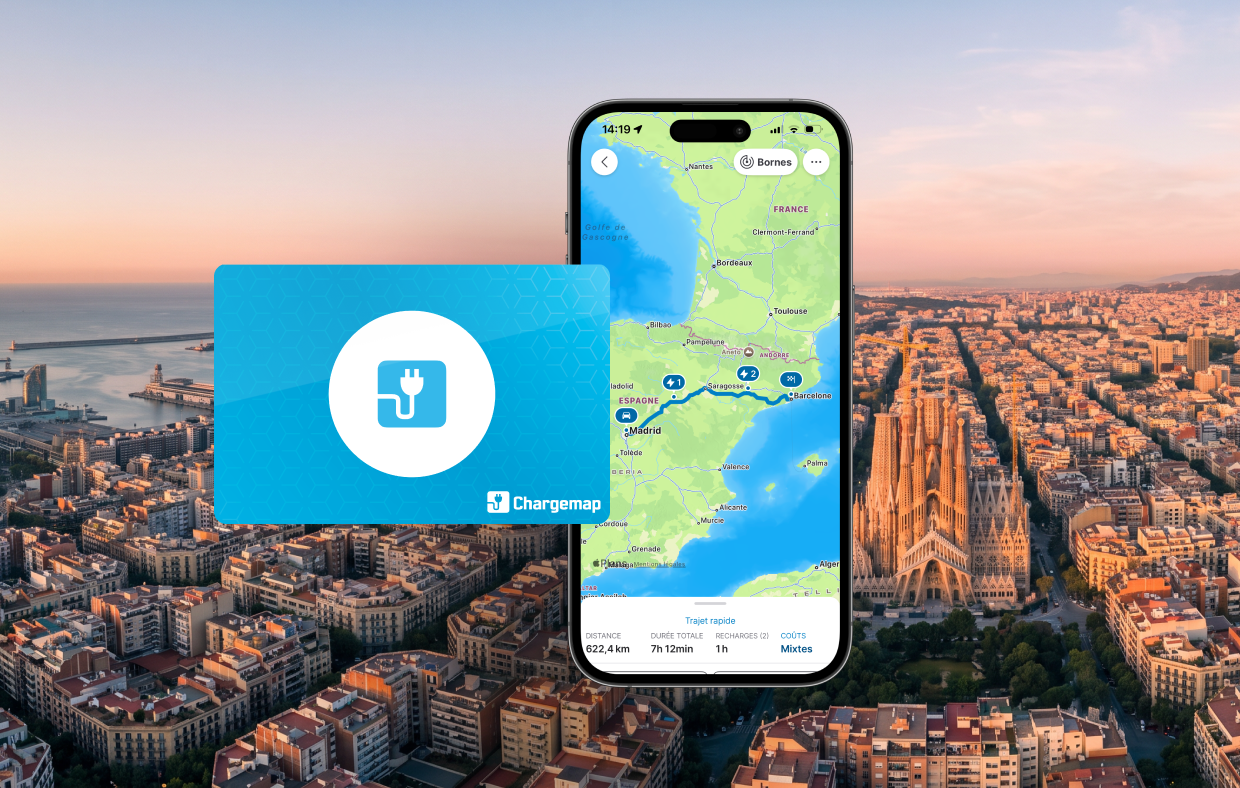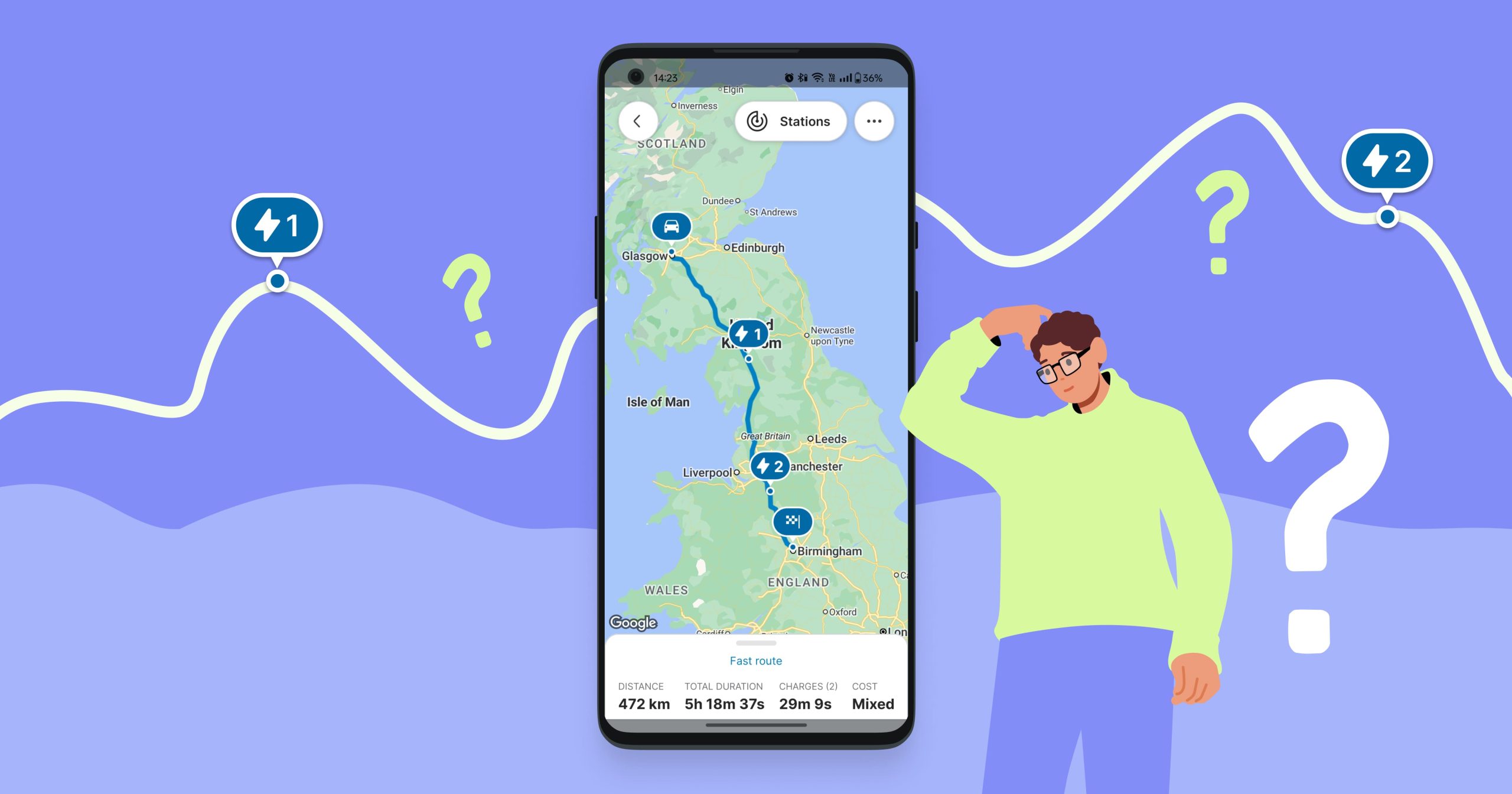
Whether you are planning a long trip or a simple return journey, the Chargemap route planner automatically calculates your charging stops based on your vehicle, your battery level and your preferences. Here is how to get the most out of it.

Key Takeaways
- Adjust your vehicle’s reference consumption in the route planner to refine predictions, especially in cold or hot weather.
- Set a minimum battery level at stops (15% by default) to keep a safety margin throughout your journey.
- You can modify any suggested stop and force a detour via a charge point of your choice.
- With Chargemap Boost, compare the fastest and most affordable route in one tap.
- The estimated charging cost is displayed on all calculated routes, even without a subscription.
How to set up your itinerary in the Chargemap route planner
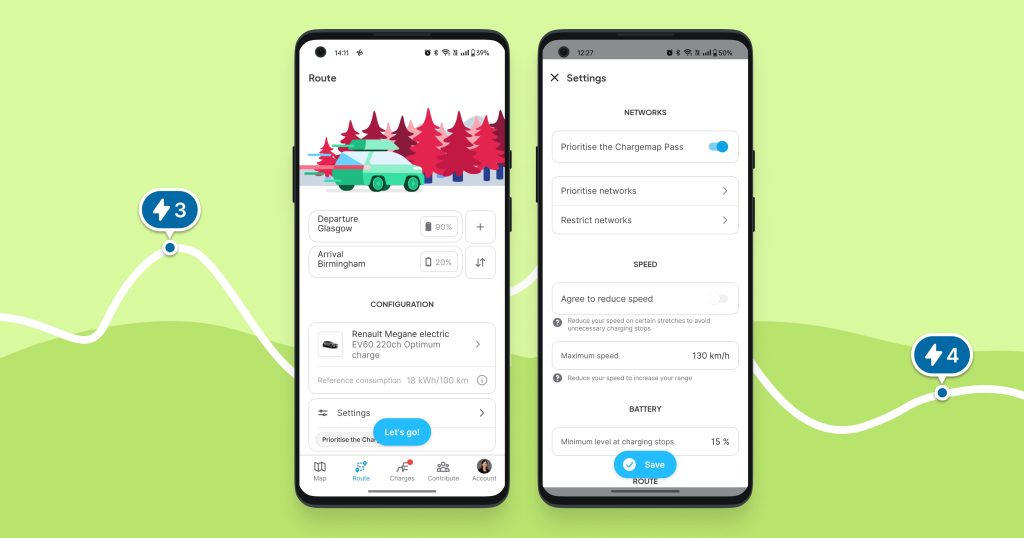
Let’s discover together how to set up your itinerary step by step.
Departure, arrival, and battery level
Start by defining your starting point and destination. Then, enter your battery level at departure and the desired level upon arrival.
You can add waypoints to your route. However, at the moment, it’s not possible to specify a battery percentage for these intermediate stops.
Vehicle and reference consumption
Select your electric vehicle. The reference consumption provided by the manufacturer is pre-selected, but you can adjust it based on your experience or weather conditions (e.g. increased consumption in cold weather). This will help refine the predictions of the route planner.
Also read:
- What impact does the cold have on your electric vehicle?
- Electric vehicle in hot weather – the impact on charging
Other settings and preferences
Here are the available options to customise your route:
- Chargemap Pass / network preferences: you can prioritise the use of the Chargemap Pass charging card, certain charging networks, or limit them
- Agree to reduce speed: the algorithm may suggest driving more slowly on certain sections to optimise your range and avoid a charging stop
- Maximum speed: specify your maximum speed for the entire journey
- Minimum battery level at stops: specify a battery threshold below which you do not wish to go before recharging (default: 15%)
- Maximum detour: limit the acceptable detour distance to reach a charge point
- Avoid tolls / motorways: enable these options if you prefer secondary and/or free roads
Also read:
- Tips for boosting your electric car range with eco-driving
- Electric vehicle battery: 6 mistakes to avoid to preserve its lifespan
How does the route planner work?
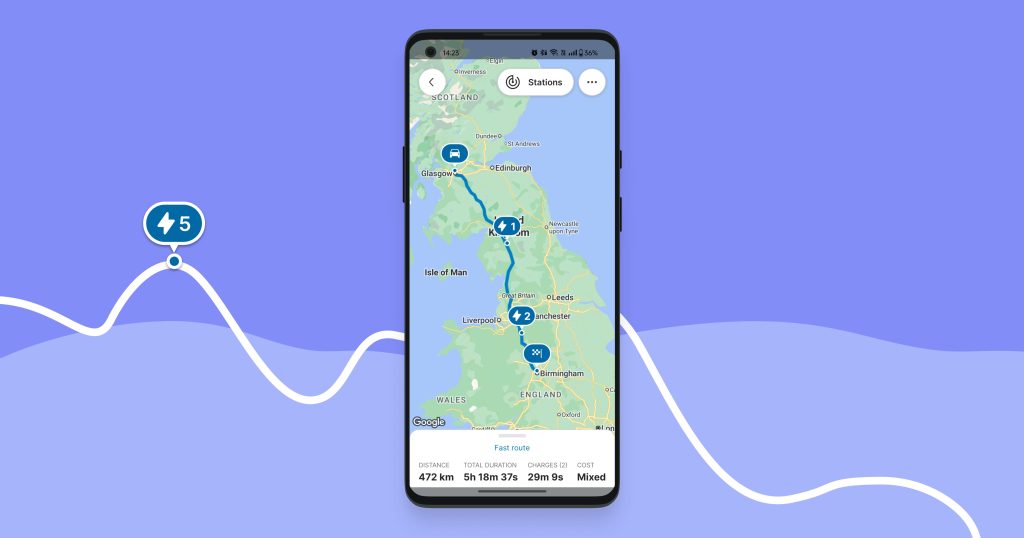
The algorithm selects the most suitable charging stations by taking into account:
- Total travel time: the algorithm aims to minimise the number of charging stops
- Vehicle characteristics: battery capacity, reference consumption, aerodynamics profile, etc.
- Charging capacity: connector compatibility, maximum charging speed, direct current (DC) charging curve
- Charging station reliability: the algorithm evaluates the stations based on their recent status and the risk of congestion
- Your preferences: the route is optimised based on your choices, while avoiding overly risky compromises
How to customise your Chargemap route
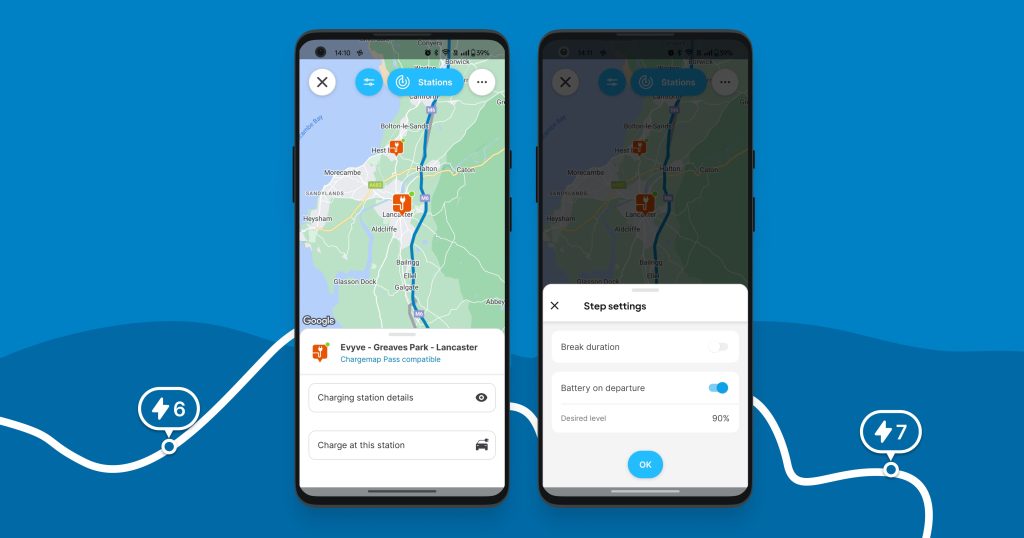
After calculating the route, you still have the option to modify the suggested charging stops.
Modify an existing charging stop
You can adjust the charging time or set a target battery percentage before continuing your journey. To do so, go to a waypoint on the route, then select ‘Edit Step’. The planner will then recalculate the route based on these new settings.
Choose an alternative charging station
Would you rather use another station? Enable the display of available charging stations along your route (click the ‘Stations’ button). By default, only those compatible with your vehicle are displayed, but you can refine your search using the filters. Once you’ve selected a station, click on “Charge at this station” to recalculate the route accordingly.
Copilot mode: manage your charging in real time
Once you’re on the road, Copilot mode (included in the Chargemap Boost subscription) detects the best available charge points along your route in real time. No need to dive back into the route planner mid-journey: the assistant adapts to your situation live, with an interface designed for quick and safe consultation at the wheel.
Optimise your charging budget on the road
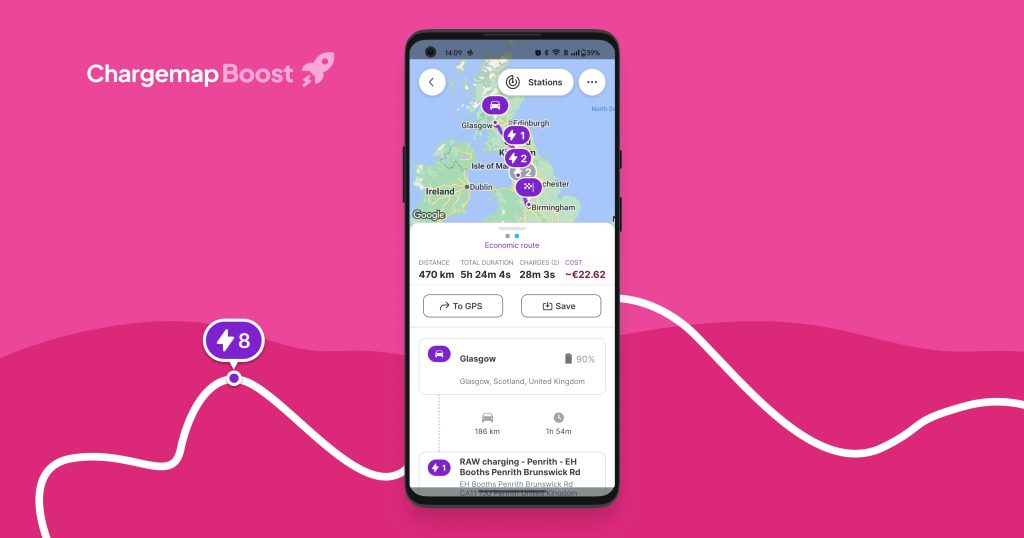
With the Chargemap Boost subscription, unlock an alternative route! In the blink of an eye, you can compare the fastest route with the most affordable one 🤩
👉 The estimated charging cost is now displayed on all calculated routes, even those available for free.

Plan your next electric vehicle journey in the Chargemap app.
Download it now for free.


We answer your questions
Why does the route planner suggest charge points from a different network than the one selected?
Your network preference is taken into account, but it is not strict — it is merely indicative. If charge points from a different network are suggested, it is often because the detour required is too long, because charge points from the preferred network have been excluded for reliability reasons, or because the risk of unavailability is too high.
Why doesn’t the route planner suggest the expected route or stop?
The route planner optimises criteria such as time, cost and distance. If the route does not suit you, adjust your preferences or force a stop at a charge point of your choice. If needed, contact our support team.
Why does the route planner only suggest one route?
By default, it suggests the fastest route. With the Chargemap Boost subscription, you unlock a second, more affordable route.
Is the route planner compatible with electric motorcycles?
No, it is designed exclusively for four-wheeled electric vehicles.
Is it compatible with plug-in hybrid vehicles?
Yes, but in a simplified way: only the fastest route is displayed, without any charging calculations. You can however still view and filter charge points along the route.